In today’s fast-paced digital world, capturing your audience’s attention requires a constant stream of fresh, engaging, and visually appealing social media content. But let’s be honest: keeping up with daily posting schedules while managing a business or brand can feel overwhelming.
Enter Canva AI.
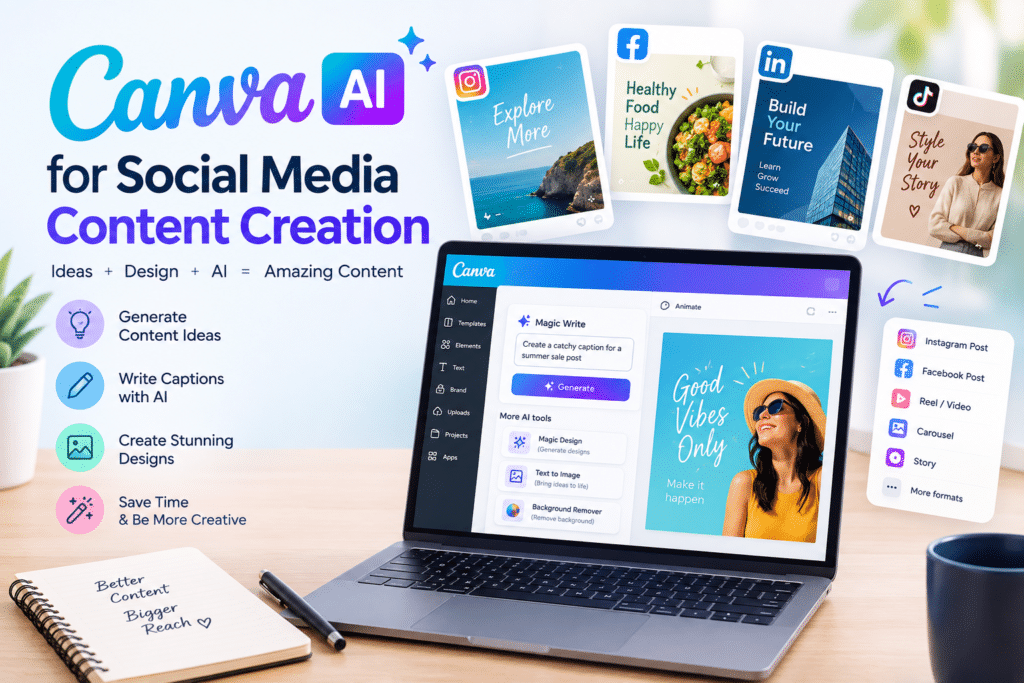
Canva has evolved far beyond a simple drag-and-drop design tool. By integrating powerful artificial intelligence features right into its platform, Canva makes it easier than ever to brainstorm, design, and scale your social media presence in a fraction of the time.
Whether you’re a seasoned marketer, a small business owner, or a solo creator, here is your step-by-step guide to leveraging Canva AI to supercharge your social media content creation.
1. Kickstart Your Ideas with Magic Write
Staring at a blank document or an empty content calendar is the ultimate productivity killer. Canva’s Magic Write acts as your personal AI copywriter, helping you move past writer’s block instantly.
-
How to use it: Open a Canva Doc or any design with text elements, click the Magic AI button (the sparkle icon), and type in a prompt.
-
Social media use cases:
-
Generate 30 days of Instagram caption ideas tailored to your niche.
-
Turn a single long-form blog post into a thread of tweets or a punchy LinkedIn post.
-
Write engaging hooks and calls-to-action (CTAs) for your Reels and TikTok videos.
-
2. Bring Your Imagination to Life with Magic Media
Sometimes the exact image you need doesn’t exist in stock libraries. With Magic Media (Canva’s AI image and video generator), you can create custom visuals simply by typing a description.
How to use it: Navigate to the “Elements” tab on the left sidebar and select “Magic Media.” Choose whether you want to generate an image or a video, type in a detailed prompt, and pick a style (e.g., watercolor, photo, 3D, minimalist).
Social media use cases:
Create unique, eye-catching backgrounds for your Instagram carousels.
Generate custom graphics or mood boards for Pinterest and Facebook posts.
Produce short, looping background videos for TikTok or Instagram Reels.
3. Resize and Repurpose Instantly with Magic Switch
Creating content for multiple platforms used to mean redesigning graphics from scratch for every single channel. Canva’s Magic Switch solves this by instantly reformatting your designs for different dimensions.
How to use it: Click on “Resize” at the top left of the editor, select your new destination formats (like an Instagram Story, a Twitter banner, or a LinkedIn post), and watch Canva automatically adjust the layout.
Social media use cases:
Transform a landscape YouTube thumbnail into a vertical Instagram Reel cover in one click.
Convert a horizontal presentation slide into an infographic optimized for Pinterest.
4. Edit Like a Pro with Magic Grab and Magic Edit
Need to remove an object from a photo, replace a background, or move an element around? Canva’s AI photo-editing suite handles complex photo manipulation in seconds.
Magic Grab: Automatically isolates the main subject of your photo so you can move, resize, or reposition it freely.
Magic Edit: Lets you highlight a specific area of an image and type what you want to replace it with (e.g., turning a plain coffee cup into a branded mug).
Social media use cases: Clean up product photography, remove distracting backgrounds from selfies, or add creative props to lifestyle shots for your product launches.
5. Speed Up Production with Bulk Create
If you run a campaign, post daily motivational quotes, or share weekly product spotlights, making graphics one-by-one is tedious. Bulk Create lets you generate dozens of unique graphics simultaneously.
How to use it: Go to apps, search for “Bulk Create,” and either manually enter your data or upload a CSV file containing your text (like quotes, tips, or product names). Then, connect your text elements to the data source and hit generate.
Social media use cases: Quickly generate a month’s worth of inspirational quote graphics, event countdown posts, or real estate listing cards in under two minutes.
Best Practices for Using Canva AI in Your Workflow
While Canva AI tools are incredible time-savers, keep these tips in mind to maintain an authentic brand voice:
Add the Human Touch: Always review AI-generated captions and tweak them to sound more like your brand’s unique voice and tone.
Stay On-Brand: Use Canva’s Brand Kit to lock in your brand fonts, colors, and logos so that your AI-generated visuals always look cohesive.
Quality Control: AI images can sometimes have weird artifacts (like extra fingers or warped text). Double-check your visuals before scheduling them out.
Ready to Elevate Your Social Media?
Content creation doesn’t have to be a grind. By combining your creativity with the speed and power of Canva AI, you can produce professional, high-performing content in a fraction of the time—leaving you more energy to engage with your community and grow your brand.
Have you tried Canva AI yet? What’s your favorite feature to use for your social channels? Let us know in the comments below!