Google Shopping Ads serve as an essential growth engine for e-commerce businesses by placing visually rich, high-intent product listings—complete with images, real-time pricing, discounts, and store ratings—directly at the top of Google search results. By leveraging a structured product feed through Google Merchant Center alongside smart bidding strategies in Google Ads, online retailers can automate query matching, streamline customer acquisition, and dramatically boost conversion rates. Mastering foundational elements like feed optimization, title keyword structuring, negative keyword filtering, and conversion tracking ensures that every ad dollar spent targets shoppers who are ready to purchase. For e-commerce stores, reaching shoppers at the exact moment they show high buying intent translates to higher conversion rates and stronger return on ad spend (ROAS).
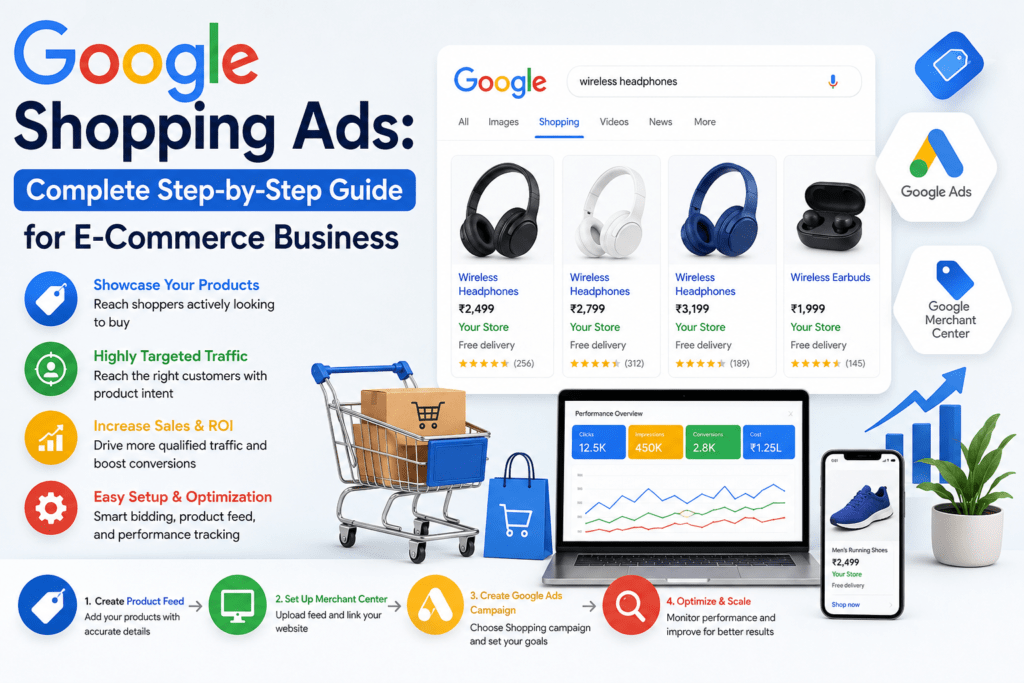
1. How Google Shopping Ads Work
Google Shopping Ads do not rely on traditional keyword bidding. Instead, Google reads structured data from a Product Data Feed uploaded to Google Merchant Center. Google’s algorithms automatically match product information with relevant user search queries.
E-Commerce Store (Shopify/WooCommerce)
↓
Google Merchant Center (Feed)
↓
Google Ads (Campaign Setup)
↓
Search Engine Results Page (SERP)
2. Essential Pre-Setup Requirements
Before launching your first campaign, ensure your store meets Google’s merchant policies:
Valid SSL Certificate: Your site must run securely on
https://.Clear Policy Pages: Explicit refund, return, and privacy policy links must be visible in your store footer.
Working Checkout: Functional, secure checkout supporting standard local payment methods.
Accurate Contact Info: A verified phone number, physical address, and contact email address.
3. Step-by-Step Setup Guide
Step 1: Create & Verify Google Merchant Center (GMC)
Go to Google Merchant Center and create an account using your primary business Google account.
Input your business name, time zone, and website URL.
Verify site ownership using Google Tag Manager, Google Analytics, or an HTML tag added to your website theme.
Step 2: Build & Upload Your Product Feed
Your product feed acts as the bridge between your store and Google. You can connect your platform (Shopify, WooCommerce, BigCommerce) via direct API integration, standard Google Sheets templates, or XML feeds.
Every feed must contain these essential attributes:
| Attribute | Format / Requirement | Impact |
id | Unique SKU or alphanumeric identifier | Required for tracking inventory |
title | Product name (Max 150 chars) | Highest impact on query matching |
description | Clear, keyword-rich product summary | Helps Google contextualize items |
link | Direct canonical URL to the product page | Landing page quality score |
image_link | High-res URL (white background, no watermarks) | Drives Click-Through Rate (CTR) |
price | Price + currency code (e.g., 29.99 USD) | Matches checkout page price exactly |
availability | in_stock, out_of_stock, or preorder | Prevents spending on unavailable items |
gtin / mpn | Global Trade Item Number (UPC/EAN) or Manufacturer Part Number | Crucial for Google product catalog matching |
Step 3: Link Google Merchant Center to Google Ads
Log into Google Merchant Center.
Go to Settings & Tools > Linked Accounts.
Select Google Ads and enter your 10-digit Google Ads Customer ID.
Log into Google Ads and accept the link request under Tools & Settings > Linked Accounts
Step 4: Launch Your Campaign
In Google Ads, click + New Campaign.
Choose Sales as your objective, then select Shopping as the campaign type.
Choose your campaign setup:
Performance Max (PMax): Recommended for scalable automation. Uses Google AI to run ads across Search, YouTube, Display, Discover, and Gmail.
Standard Shopping: Offers manual control over keyword exclusion, bids, and device targeting.
4. Optimization Best Practices
Optimize Product Titles
Product titles heavily influence query targeting. Place high-value keywords and key specifications at the front of the title:
Weak Title:
Casual Blue ShirtOptimized Title:
Men's Slim-Fit Oxford Cotton Shirt - Navy Blue - Size L
Use High-Quality Images
Use bright, high-resolution main images with plain white or clean neutral backgrounds.
Avoid adding promotional text overlays, store logos, or watermarks.
Leverage Negative Keywords (Standard Shopping)
Even though Shopping ads don’t use targeted keywords, you can use negative keywords to block unqualified traffic. Exclude terms like cheap, free, wholesale, or repair if you sell premium retail goods
Implement Ad Extensions & Trust Signals
Product Ratings: Integrate review platforms (like Yotpo or Judge.me) to showcase star ratings.
Merchant Promotions: Highlight free shipping, site-wide discounts, or coupon codes.
Conclusion
Ultimately, a successful Google Shopping strategy hinges on continuous feed maintenance and performance optimization rather than a “set-and-forget” setup. As competition grows and automated formats like Performance Max dominate the landscape, keeping your product data accurate, high-quality, and aligned with user intent will ensure high visibility, lower acquisition costs, and sustainable long-term return on ad spend (ROAS).